Trade knowledge, structured. Guides on HSN, exports, CHA, and trade policy - for Indian businesses.
This guide is for customs house agents (CHAs) and exporters who file shipping bills (SBs) on ICEGATE, the Indian Customs Electronic Gateway. It shows you how to build a shipping bill in Ximverse, generate the CACHE01 JSON that ICEGATE accepts, sign it with your digital signature certificate (DSC), and file it — without hand-editing a single line of JSON. By the end, you can take a shipment from a blank form to a filed SB number.
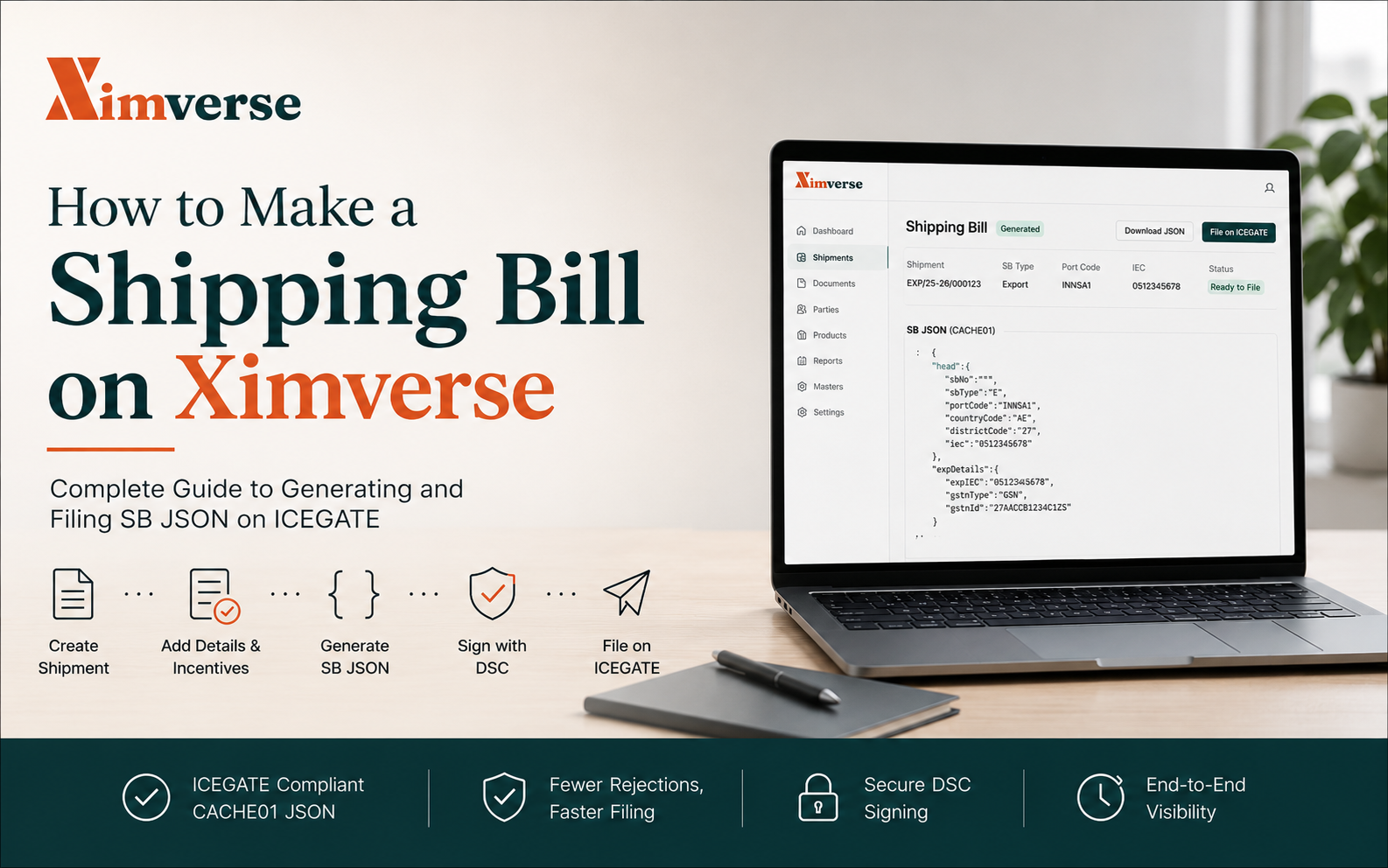
This guide is for customs house agents (CHAs) and exporters who file shipping bills (SBs) on ICEGATE, the Indian Customs Electronic Gateway. It shows you how to build a shipping bill in Ximverse, generate the CACHE01 JSON that ICEGATE accepts, sign it with your digital signature certificate (DSC), and file it — without hand-editing a single line of JSON. By the end, you can take a shipment from a blank form to a filed SB number.
A shipping bill is the export declaration Customs needs before your goods can leave the country, and ICEGATE now accepts it as a signed JSON file.
Section 50 of the Customs Act, 1962 requires every exporter to present a shipping bill before goods are loaded for export. The bill carries the exporter, the buyer, the goods, the value, the ports, and any incentive claims. Filing is electronic, through ICEGATE [VERIFY: Shipping Bill (Electronic Integrated Declaration and Paperless Processing) Regulations, 2019].
ICEGATE reads the bill as a structured JSON in the CACHE01 format — the ICES (Indian Customs EDI System) shipping bill inbound spec. The format is strict. It has dozens of mandatory fields with exact codes for ports, currency, Unit Quantity Code (UQC), GSTIN or PAN type, nature of payment, and scheme claims. One wrong code and ICEGATE rejects the file, which is where most CHAs lose time. Ximverse builds that JSON from a plain shipment form, validates it against the spec, and gives you a single generate, sign, and file flow.
Set these up once, and every future SB takes minutes.
Import-Export Code (IEC) — your 10-digit code from the Directorate General of Foreign Trade (DGFT).
GSTIN or PAN — with the correct identifier type. Ximverse maps this to the CACHE01 GSTN fields.
Authorised Dealer (AD) code — your bank's code, registered at your export port.
An active ICEGATE login for the filing entity.
A Class 3 DSC, with its USB token and signing driver (emBridge or nCode) installed on the machine you file from.
Exporter profile — company, address, IEC, GSTIN, and AD code.
Product catalogue — each product carries its HSN code and UQC, so line items auto-fill.
Buyer records — consignee company, address, country, and tax ID.
The cleaner your profile and catalogue, the fewer fields you touch per bill.
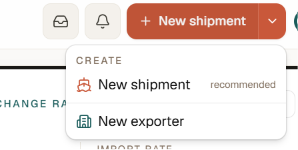
Start by creating the shipment that becomes your invoice, packing list, and shipping bill.
Open Shipments and click New shipment. The wizard walks you through each screen in order:
Mode of transport — Sea, Air, Road, Rail, or Multi-modal.
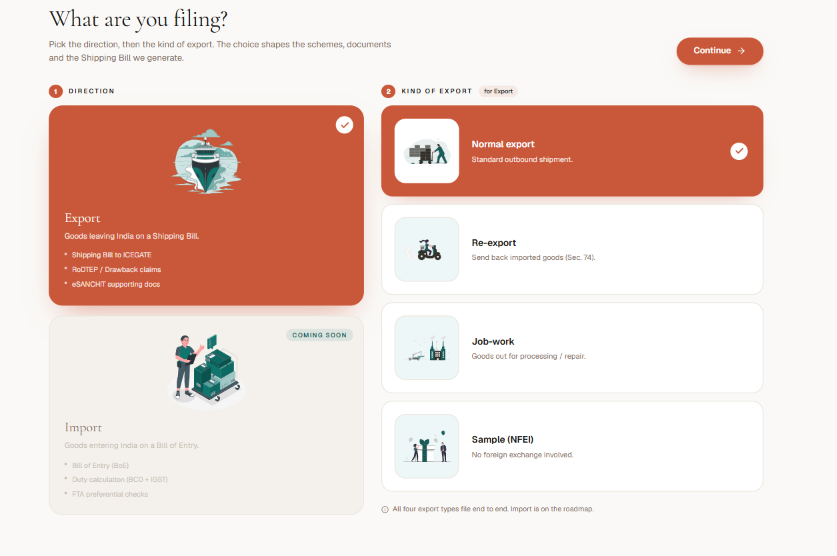
Kind of export — choose Normal for a standard export.

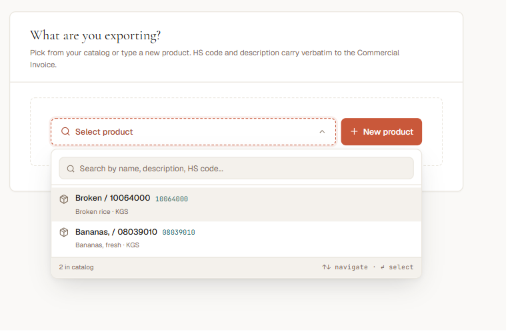
Products — select catalogue items; HSN code and UQC auto-fill. Enter quantity and unit price, and the Free on Board (FOB) value updates live.
Buyer and bank — pick the buyer and the bank account tied to your AD code. The buyer becomes the consignee on the bill; if goods ship to a different party, record that separately.
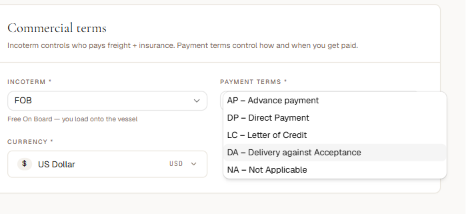
Commercial terms — set the Incoterm, named place, payment terms, currency, and exchange rate (use the rate notified by the Central Board of Indirect Taxes and Customs (CBIC), or enter your own).
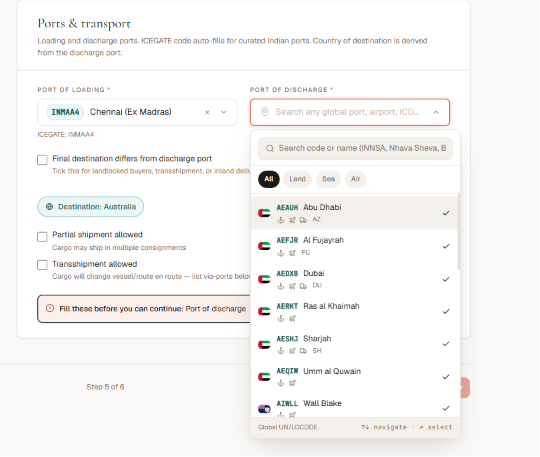
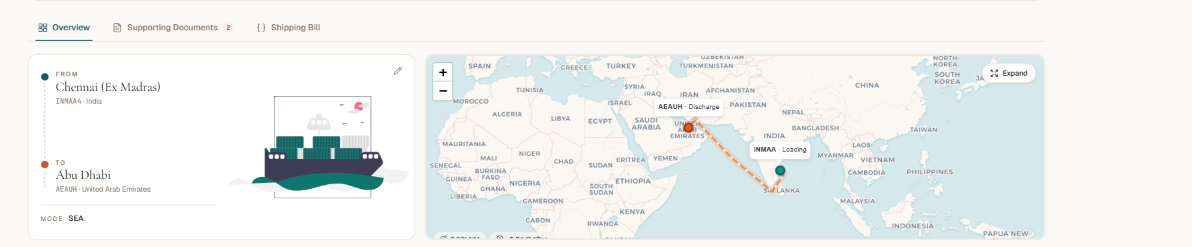
Ports and transport — choose the port of loading and port of discharge; codes auto-populate when you pick a port.
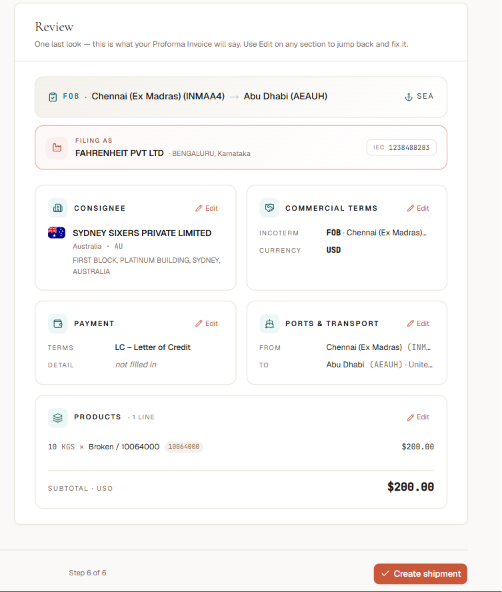
Review — check the summary and create the shipment. It lands in Draft.
Open the shipment and use the Customs and Claims tab to record the customs decisions that drive the SB. This is the layer a CHA adds before filing.
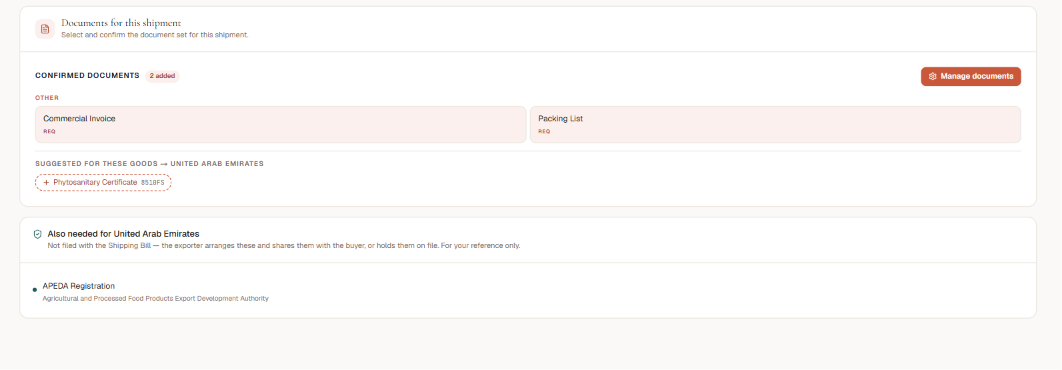
RoDTEP (Remission of Duties and Taxes on Exported Products) — tick the claim, and Ximverse shows the per-line rate and estimated refund.
Duty drawback — claimed under Section 75 of the Customs Act, 1962; tick it and the schedule number and per-line caps are matched for you.
Free Trade Agreement (FTA) preference — claim preferential treatment where your destination has an agreement.
Third-party exporter — if the goods are exported in another company's name, record that company so it flows onto the bill.
Containers, charges, and goods origin — add container and seal details for sea cargo, enter freight or insurance on Cost, Insurance and Freight (CIF) terms, and confirm each line's origin and end-use.
Claim only what applies. Ximverse flags incompatible combinations before you file.
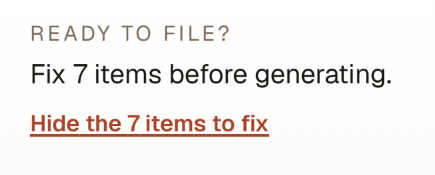
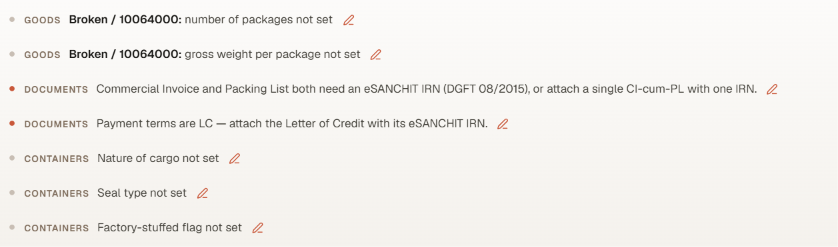
Turn the shipment into a schema-valid ICEGATE JSON with one click.

Open the Shipping Bill filing panel and click Generate Shipping Bill. Ximverse serialises your shipment into a complete CACHE01 document, validates it against the ICEGATE schema, and assigns the submission a Job number. Read the validation summary before you do anything else:
Schema valid — the JSON matches the CACHE01 spec.
Blocking issues and warnings — business-rule checks; blockers stop filing, warnings are advisory.
IRN blockers — if a document on eSanchit (ICEGATE's supporting-document upload) is missing its Image Reference Number (IRN), add it in the Documents tab, then regenerate.
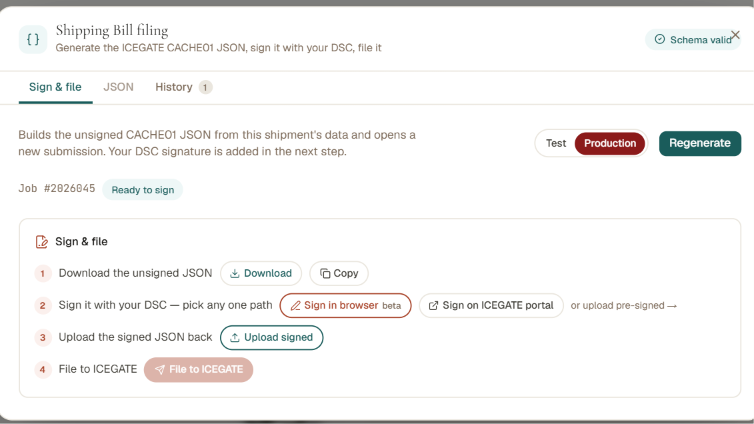
When the panel shows Ready to sign, the bill is clean. Fix any blocker, click Regenerate, and check again. You can preview or download the raw JSON from the JSON tab at any time.
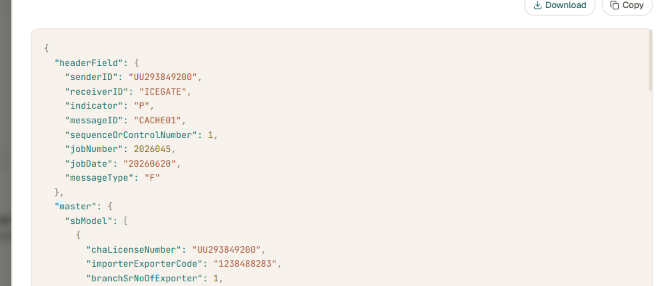
Generate in Test first, then switch to Production for the real filing.
Mode | What it does | When to use |
|---|---|---|
Test (T) | ICES validates the structure; no real SB is filed | Every draft and dry run |
Production (P) | Files a real, live shipping bill | Only when the bill is final |
ICEGATE only accepts a shipping bill signed with a valid Class 3 DSC, and Ximverse keeps signing inside the same workflow.
You have three ways to sign:
Sign in browser (beta) — if a local DSC bridge (emBridge or nCode) is running, sign in one click.
Sign on ICEGATE portal — open ICEGATE's JSON sign page and sign the downloaded file with your DSC driver.
Upload pre-signed — if you signed the JSON elsewhere, upload it.
For the second and third options, download the unsigned file first, sign it, then click Upload signed. Ximverse checks the signature block and moves the submission to Signed.
With a signed, schema-valid bill, file it and let Ximverse track the response.
Click File to ICEGATE. The submission moves through clear statuses:
Submitted — the bill reached ICEGATE.
Accepted — Customs accepted it and returned a shipping bill number.
Rejected or Failed — ICEGATE returned an error, shown in full so you can fix and refile.
If ICEGATE rejects the bill, correct the flagged field on the shipment, regenerate, re-sign, and file again — you do not start over. Every attempt is logged in the History tab with its Job number, timestamps, and status. Once accepted, the SB number appears against the submission. That is your proof the bill is filed.
Most ICEGATE rejections come down to a few issues, and Ximverse surfaces each one before you sign.
Schema issues — a field does not match the spec; the summary names it, so fix it on the shipment and regenerate.
IRN blockers — add the missing eSanchit IRN in the Documents tab, then regenerate and re-sign.
Wrong codes — port, UQC, or currency codes come from your master data, so fix the product or buyer record, not the JSON.
Scheme conflicts — Ximverse warns you when two incentive claims cannot be combined.
Exchange rate mismatch — use the CBIC-notified rate for the period, or set a custom rate with its effective date.
Section 50 of the Customs Act, 1962 requires a shipping bill, and ICEGATE accepts it as a signed CACHE01 JSON.
Ximverse builds and validates that JSON from a plain shipment form, so you never hand-edit code.
The flow is five steps: build the shipment, add customs details, generate the JSON, sign with your DSC, and file.
Generate in Test mode first, and switch to Production only when the bill is final.
A bill is filed once ICEGATE returns the SB number, which Ximverse logs in the History tab.
slug: how-to-make-shipping-bill-on-ximverse excerpt: A step-by-step guide for CHAs and exporters to build a shipping bill in Ximverse, generate the ICEGATE CACHE01 JSON, sign it, and file it. category: How We Are Solving
© 2026 Manudocs Private Limited · All rights reserved.
Aligned with Maritime India Vision 2030 · Built in India